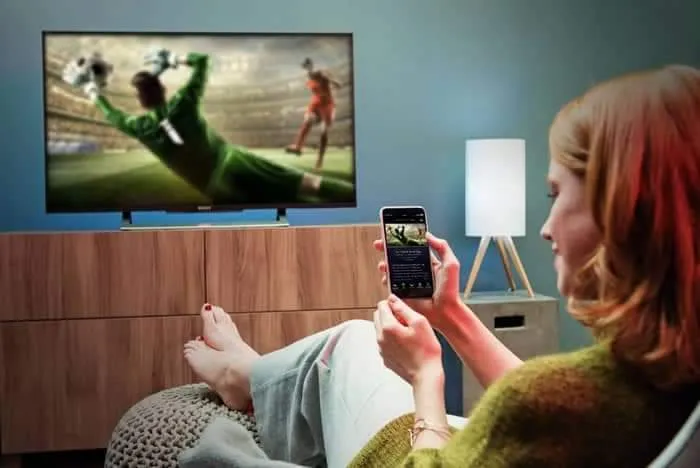
Smart TVs can run IPTV through a compatible application downloaded from the television's official app store. The app provides the interface, while your provider supplies the account, playlist and guide data.
What you need
- A compatible Samsung, LG, Android TV, Google TV or other supported Smart TV.
- A stable internet connection, preferably Ethernet or strong 5 GHz Wi-Fi.
- A compatible IPTV player available through the TV's official app store.
- The username, password, server URL or playlist details supplied by your provider.
Choose your Smart TV platform
Each TV platform has its own app store, its own player availability and its own menu labels. Pick the guide that matches the television in front of you — it covers that platform in full, from checking the model to fixing a stream that will not play.
How to Set Up IPTV on Samsung Smart TV
Tizen versions, the Samsung app store, compatible players, provider login and buffering fixes.
Read guide LG webOSHow to Set Up IPTV on LG Smart TV
webOS versions, the LG Content Store, Magic Remote typing tips, EPG setup and troubleshooting.
Read guide Android TVIPTV on Android TV & Google TV
The widest player choice of any TV platform, plus Play Store install, sideloading and TV troubleshooting.
Read guide External deviceHow to Set Up IPTV on Firestick
When your TV has no suitable player, an external stick is the fix. Covers Downloader, permissions and player login.
Read guideSet up IPTV on your Smart TV
- Connect the TV to the internet and install any pending system updates.
- Check the model, year and platform version, since player support depends on them.
- Open the TV's official app store and search for a compatible IPTV player.
- Install the player, then open it and choose the login method supported by your service.
- Enter your provider details exactly as supplied. Avoid guessing server or EPG addresses.
- Refresh the playlist and EPG, then open Live TV or the on-demand library.
Improve playback
Close unused apps, keep the TV firmware and player current, and move the router closer if Wi-Fi is weak. If one channel fails, test another channel and confirm the service is online before reinstalling the app.
Troubleshooting Smart TV IPTV Issues
- Player is not in the TV's app store: check the supported model years, update the TV software, or use an external device instead.
- Login rejected: recheck the username, password and server address, and confirm the login method matches the one your provider issued.
- Channels or the EPG will not load: refresh the playlist, confirm the service is online, and correct the TV's date, time and time zone.
- Buffering: restart the router and TV, reduce other network activity, lower the resolution and test a second channel.
- App freezes: close background apps, clear the player's cache or reinstall it, then power the TV off completely rather than leaving it in standby.
When the app is not available
Some TV platforms and older models have fewer player options. In that case, use a supported external device such as an Android TV box or Fire TV Stick, or check whether your provider offers an alternative official player. Your login details stay the same whichever device you use — see the login details guide if you are unsure what to enter.
Frequently Asked Questions
Can I install IPTV directly on a Smart TV?
Often yes, when a compatible player is available in that TV's official app store for your model and year. Otherwise an external streaming device is the practical alternative.
Which Smart TV platforms support IPTV?
Samsung (Tizen), LG (webOS), Android TV and Google TV are the common ones. Player availability varies by platform, country and model year, so check your TV's app store.
Do I need a separate device for IPTV?
Not if a suitable player exists for your TV. If it does not — common on older sets — a Fire TV Stick, Android TV box or Google TV device turns the TV into a capable IPTV screen.
Are the login details the same on every TV?
Yes. Your provider issues one set of credentials, and the same details work on any device you are authorized to use — only the app and the login method differ.
Why does buffering affect one channel but not others?
A single failing channel points at that stream, while everything failing at once points at your network or the service. Restart the router and TV before reinstalling anything.