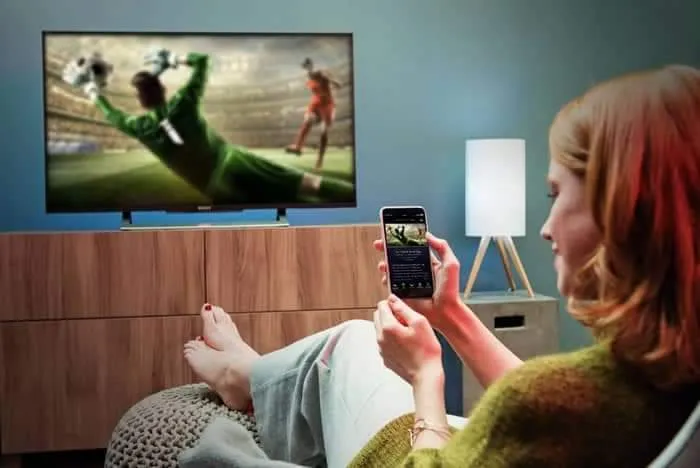
IPTV on a Samsung Smart TV normally means installing an IPTV player from the Samsung app store and signing in to a service you are authorized to use. The player provides the interface, while your provider supplies the account, playlist and guide data that fill it with channels.
What You Need to Set Up IPTV on a Samsung Smart TV
- A Samsung Smart TV from roughly 2018 onward running Tizen 4.0 or later, for the widest player support.
- A stable internet connection, preferably Ethernet or a strong 5 GHz Wi-Fi network.
- A Samsung account signed in on the TV, if you intend to install apps from the Samsung store.
- A compatible IPTV player available for your TV model and country.
- Login details from a provider you are authorized to use: a username, password and server or portal address, or an M3U playlist link.
How the Samsung Smart TV IPTV Setup Process Works
- Check the TV model, year and software version, then install pending updates.
- Connect the TV to the internet and confirm it is online.
- Open the Samsung app store and install a compatible IPTV player.
- Open the player and choose the login method your provider supports.
- Enter your provider details exactly as supplied.
- Refresh the playlist and EPG, then open Live TV or the on-demand library.
Step 1 - Check Your Samsung TV Model and Software
Not every Samsung TV supports the same apps, so start by confirming what you have. Open Settings, choose Support, then About This TV. Note the model code, the year and the software version. If an update is offered, install it and let the TV restart before continuing; player compatibility often depends on the Tizen version rather than the screen size.
Step 2 - Connect the TV to the Internet
Open Settings, then General and Network. A wired Ethernet connection removes Wi-Fi variables and is the safer option if the router sits near the TV. Otherwise join a 5 GHz network where available and confirm the connection status shows online. Run the TV's connection test if you are unsure, and restart the router first if the network is not detected.
Step 3 - Install a Compatible IPTV Player
From the home screen, open Apps and use the search icon to look for an IPTV player. Availability varies by country, model year and software version, so a player found on one TV may not appear on another. Choose a player published by a recognizable developer, select Install and open it when the download finishes.
If a search returns nothing, try broader or different terms, update the TV software, and check the player's own documentation for supported Samsung models. Your provider may also recommend a specific player for Tizen TVs.
Step 4 - Choose the Login Method
Most players offer several ways to connect: an Xtream Codes API login, an M3U playlist URL, or a portal or MAC-based connection. Pick the one your provider supports. Using the wrong method is one of the most common reasons an otherwise correct login fails.
Step 5 - Enter Your IPTV Login Details
Enter your IPTV Network Hub credentials exactly as provided. For an Xtream Codes-style login the provider normally supplies a username, a password and a server or portal URL. Type them carefully with the on-screen remote keyboard, and remember that some remote apps let you type from your phone, which is far quicker and less error-prone.
Do not guess a server address, change capital letters or reuse credentials from another service. After submitting the form, give the player time to download its categories and channel list — this can take a minute or two on first login.
Step 6 - Load the EPG and Start Watching
Once the playlist loads, open Live TV, pick a category and select a channel. If the programme guide is empty, use the player's EPG option and the configuration details supplied by your provider; many services deliver guide data automatically when the playlist refreshes. The same player may also expose Movies or Series if your service includes them.
Improve Playback on a Samsung TV
Close background apps so the TV's limited memory is free for the player, keep the TV software and the player updated, and prefer a wired connection where practical. Test a second channel when one stutters: a single failing channel points at that stream, while everything failing at once points at the network or the service.
Troubleshooting Samsung Smart TV IPTV Issues
- App will not install: confirm the TV is signed in to a Samsung account, has free storage, is online and is running current software.
- App is not in the store: check the player's supported model list, or use an external device such as a Fire TV Stick, Android TV box or Google TV device.
- Login rejected: recheck the username, password and server address, and confirm the login method matches what your provider issued.
- Channels will not load: refresh the playlist, confirm the service is online and contact your provider if the account or server is unavailable.
- Frequent buffering: restart the router and TV, reduce other network activity, lower the streaming resolution and test another channel.
- App crashes or stutters: clear the app's cache or reinstall it, then power the TV off completely rather than leaving it in standby.
When No Player Is Available for Your Model
Older Samsung TVs run Tizen versions that fewer developers still support, and very old models may not offer a suitable player at all. In that case an inexpensive external device is usually the simplest fix, and the TV becomes the screen rather than the player. Our Firestick guide and Android guide cover those setups step by step.
Frequently Asked Questions
Can I install IPTV on a Samsung Smart TV?
Yes, if a compatible player is available in the Samsung app store for your model and year. Install the player, then sign in with details from a service you are authorized to use.
Which Samsung TVs support IPTV players?
Models from roughly 2018 onward running Tizen 4.0 or later have the widest choice. Older models have fewer options, so check the app store before assuming one will install.
Is there an official IPTV app for Samsung Smart TV?
There is no single official IPTV app. Several compatible players are published for Samsung TVs, and availability varies by country and model year.
Do I need a Samsung account to install an IPTV player?
A Samsung account is normally required to install apps from the Samsung store. If the TV is already signed in, no extra account is needed.
How do I enter IPTV login details on a Samsung TV?
Open the player, choose its provider login method and enter the supplied username, password and server or portal address. Typing from the phone remote app is quicker than the on-screen keyboard.
How do I add the EPG on a Samsung Smart TV?
Many providers deliver guide data automatically when the playlist loads. If it is empty, use the player's EPG option and the details supplied by your provider.
Why does my Samsung TV IPTV app keep buffering?
Check the connection, restart the router and TV, reduce other network activity, update the player and test another channel before reinstalling anything.
The IPTV app is missing from my Samsung TV app store. What can I do?
Search with different terms, update the TV software and check the player's supported models. If it is still unavailable, use a supported external device.
Can I use IPTV on a Samsung TV without a box?
Often yes, when a compatible player is available for your model. Otherwise an external streaming device is the practical alternative.